
Random vs Perlin noise in p5.js: from jumpy dots to flow fields
Nine sketches, from simple to challenging, written the way larger projects are written

Tested with: p5.js 2.3.4 (the current release), Chrome, October 2026. Every sketch runs in the p5.js Web Editor: open one, press play, and press the keys listed under the canvas.
If you are working through generative art on CM2030 Graphics Programming, you will meet two functions that look similar and behave completely differently: random() and noise(). This post explains what Perlin noise is and how it is built, then builds up the difference in ten small sketches, numbered 00 to 09 from simple to challenging. They are all in one collection on the p5.js Web Editor:
Perlin noise (p5.js 2.x) collection
Each section below shows the key code and links to its sketch. The sketches are written as tutor material to go with the course, not as course material, so they don't copy the course's code; they explain the same ideas in my own examples.
What is Perlin noise?
A little history
In 1982 Ken Perlin worked on the Disney film Tron at the animation company MAGI. He was frustrated by how "machine-like" computer graphics looked: perfectly smooth surfaces, perfectly clean edges. Real things such as marble, clouds, smoke and skin have detail that is irregular but not chaotic. So he invented a way to make that kind of detail with a formula, which he described in his 1985 SIGGRAPH paper "An Image Synthesizer". In 1997 he received an Academy Award for Technical Achievement for it. He later designed a faster successor, simplex noise (2001), and published an improved version of the original (2002).
From random to noise, step by step
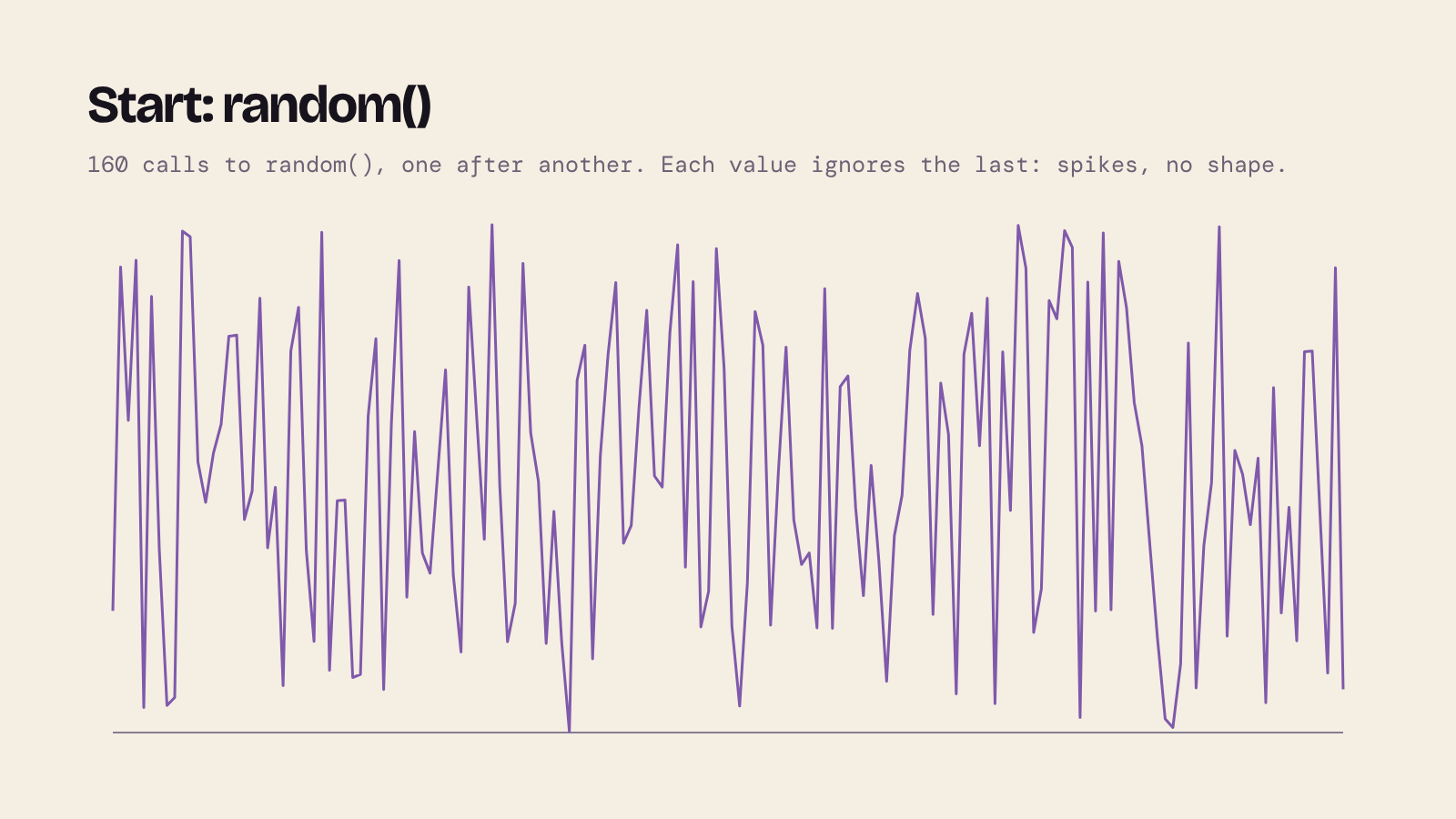
Start with random(). Each call ignores the one before, so a graph of random() is all spikes. Nothing in nature looks like that.
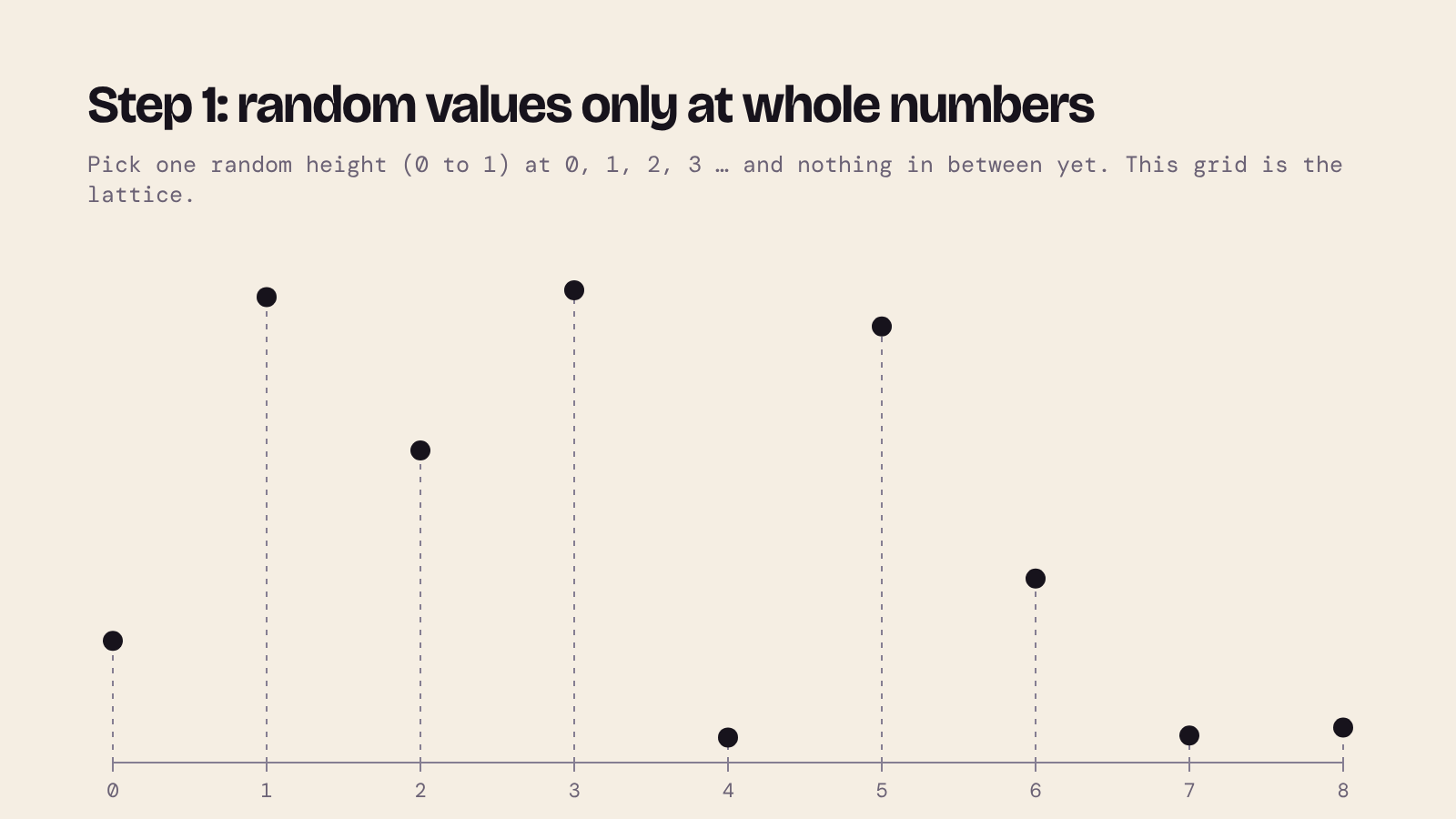
Step 1: random values only at whole numbers. Choose one random height at 0, 1, 2, 3 and so on, and nothing in between yet. This grid of points is called the lattice.
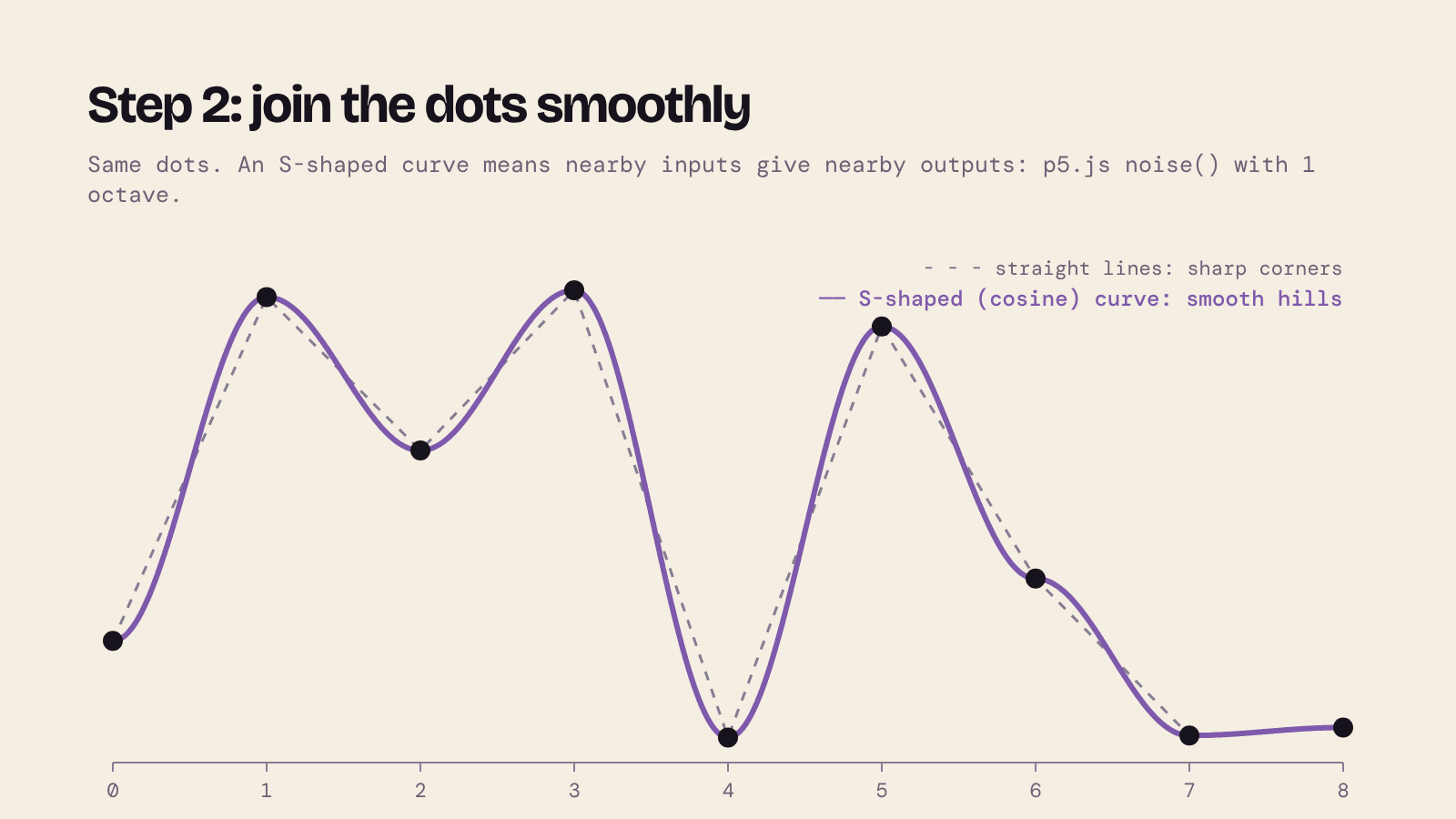
Step 2: join the dots smoothly. Straight lines between the dots would give sharp corners. An S-shaped curve gives smooth hills instead, so inputs that are close together give outputs that are close together. That is the whole idea: random at a coarse scale, smooth in between.
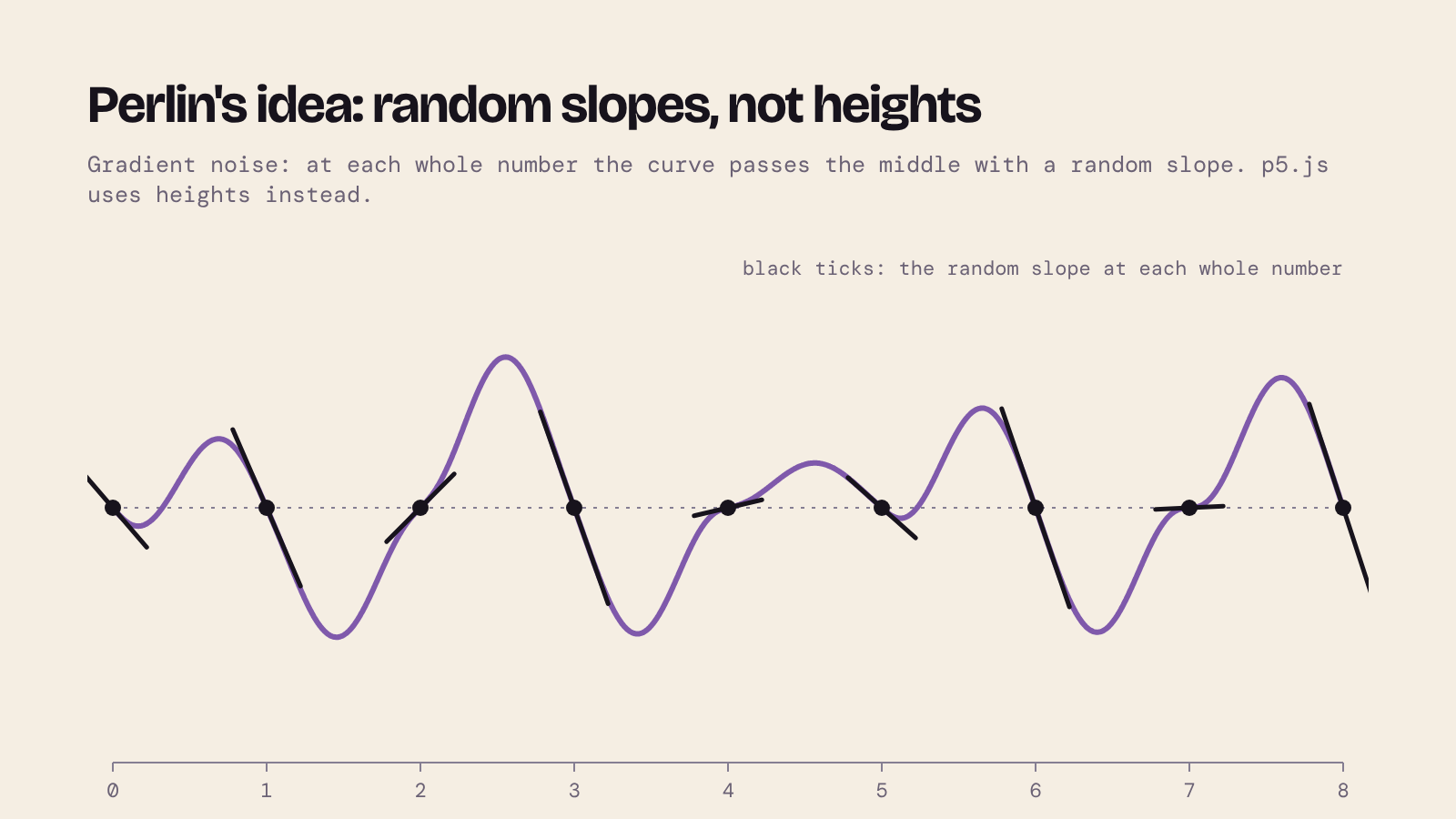
Perlin's version: random slopes, not heights. Ken Perlin's own method, called gradient noise, gives every whole number a random slope instead of a random height. The curve passes the middle value at each whole number, tilted by that slope, and is blended smoothly in between. This hides the regular grid better.
How p5.js does it: p5.js's
noise()uses steps 1 and 2: random heights at whole numbers, joined with a cosine S-curve. That is called value noise, a simpler cousin of Perlin's gradient noise. You can check this in the p5.js source code. For sketching it behaves the same way, and p5.js keeps the name "Perlin noise", but now you know the difference.
Octaves: adding detail
One smooth layer looks like soft, blobby hills. Real coastlines and clouds have big shapes and small detail. So the same kind of curve is added again at a higher frequency and a lower strength. Each layer is called an octave, borrowing the music term: each one has double the frequency of the one before.
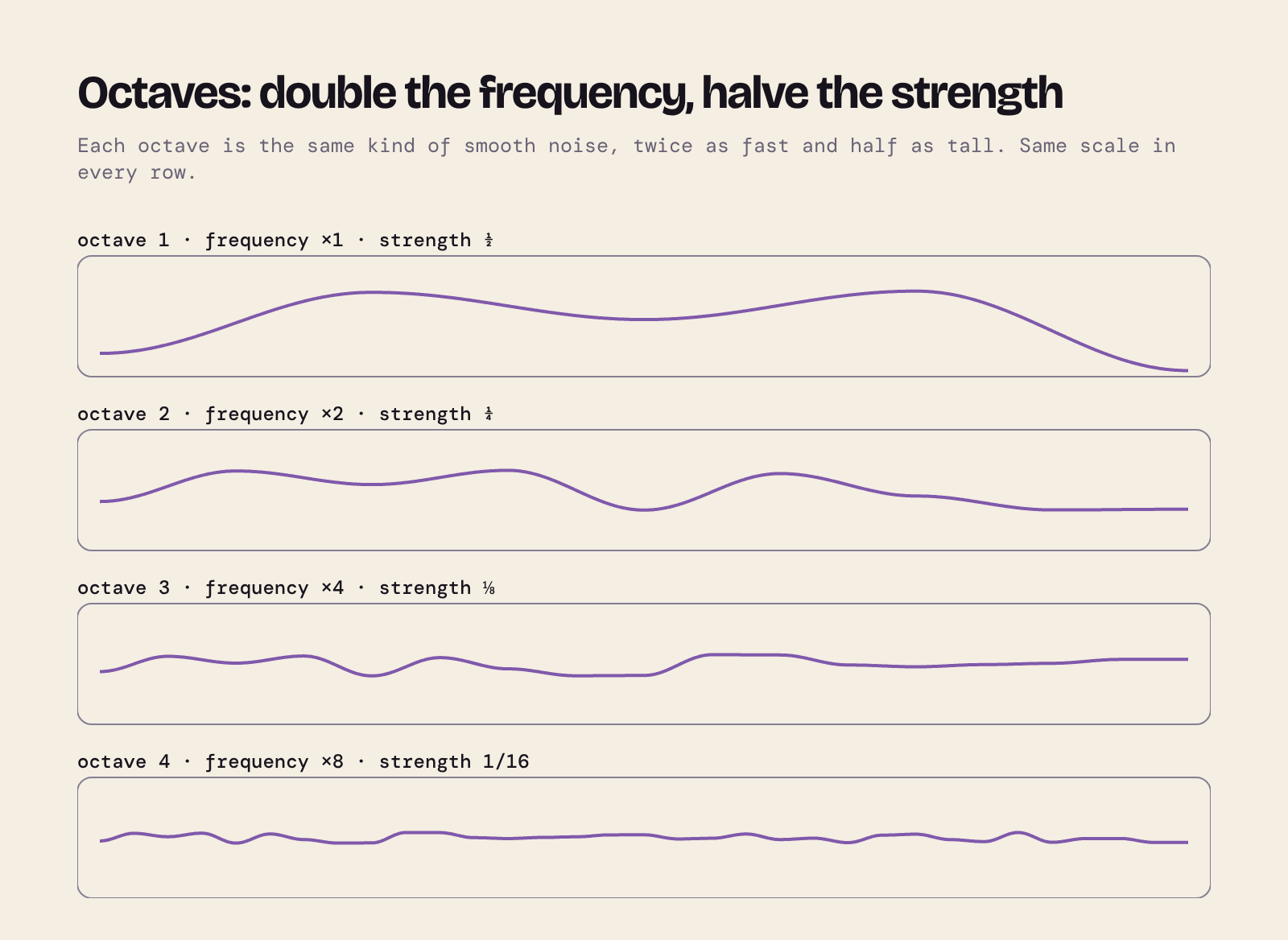
Add the octaves together and the big hills keep their shape while gaining finer and finer detail:
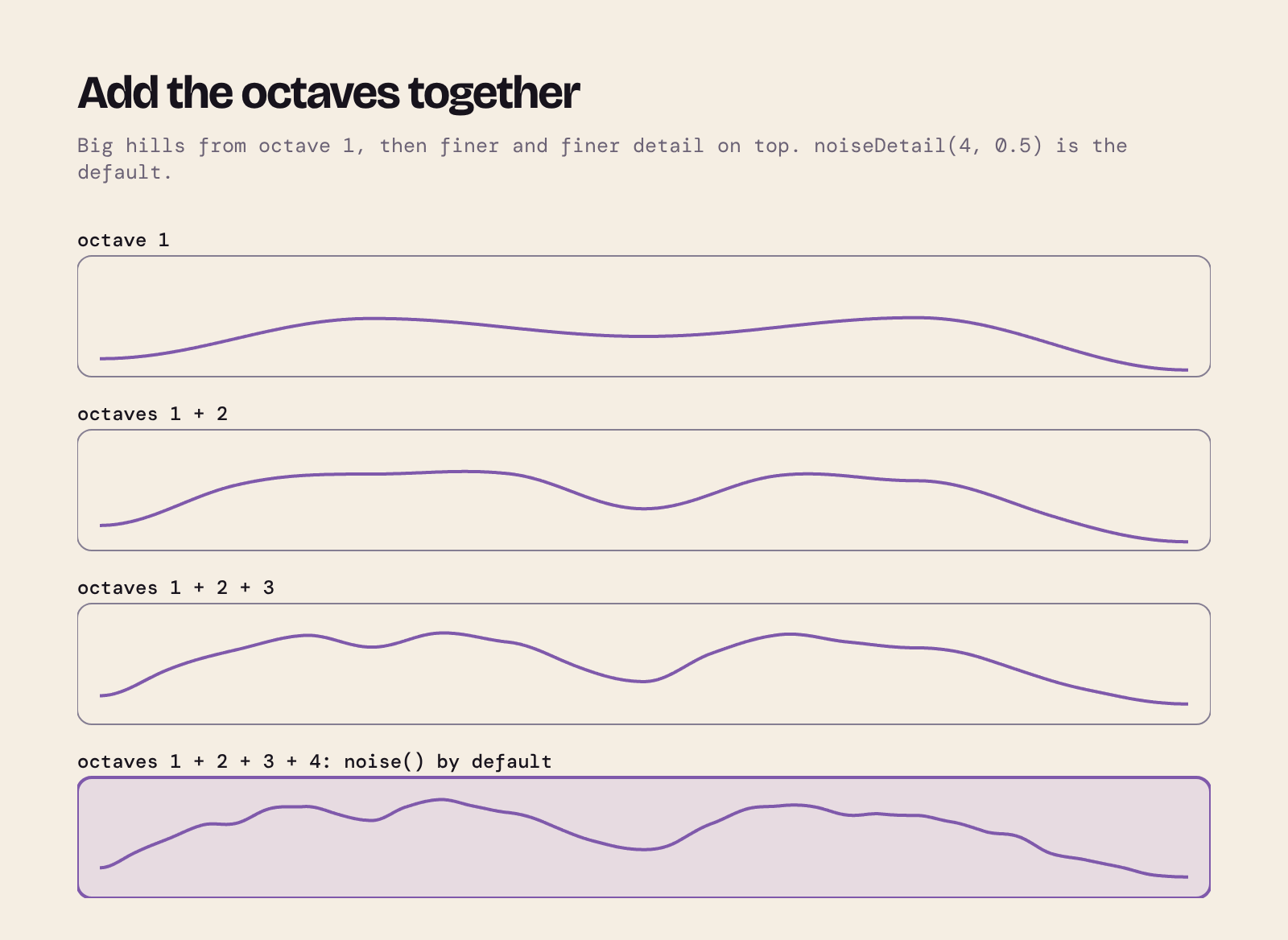
In p5.js, noiseDetail(octaves, falloff) sets this. The defaults are 4 octaves and a falloff of 0.5: the first octave counts ½, the next ¼, then ⅛, then 1/16. The same thing happens in 2D, where one octave gives soft blobs and four give clouds:
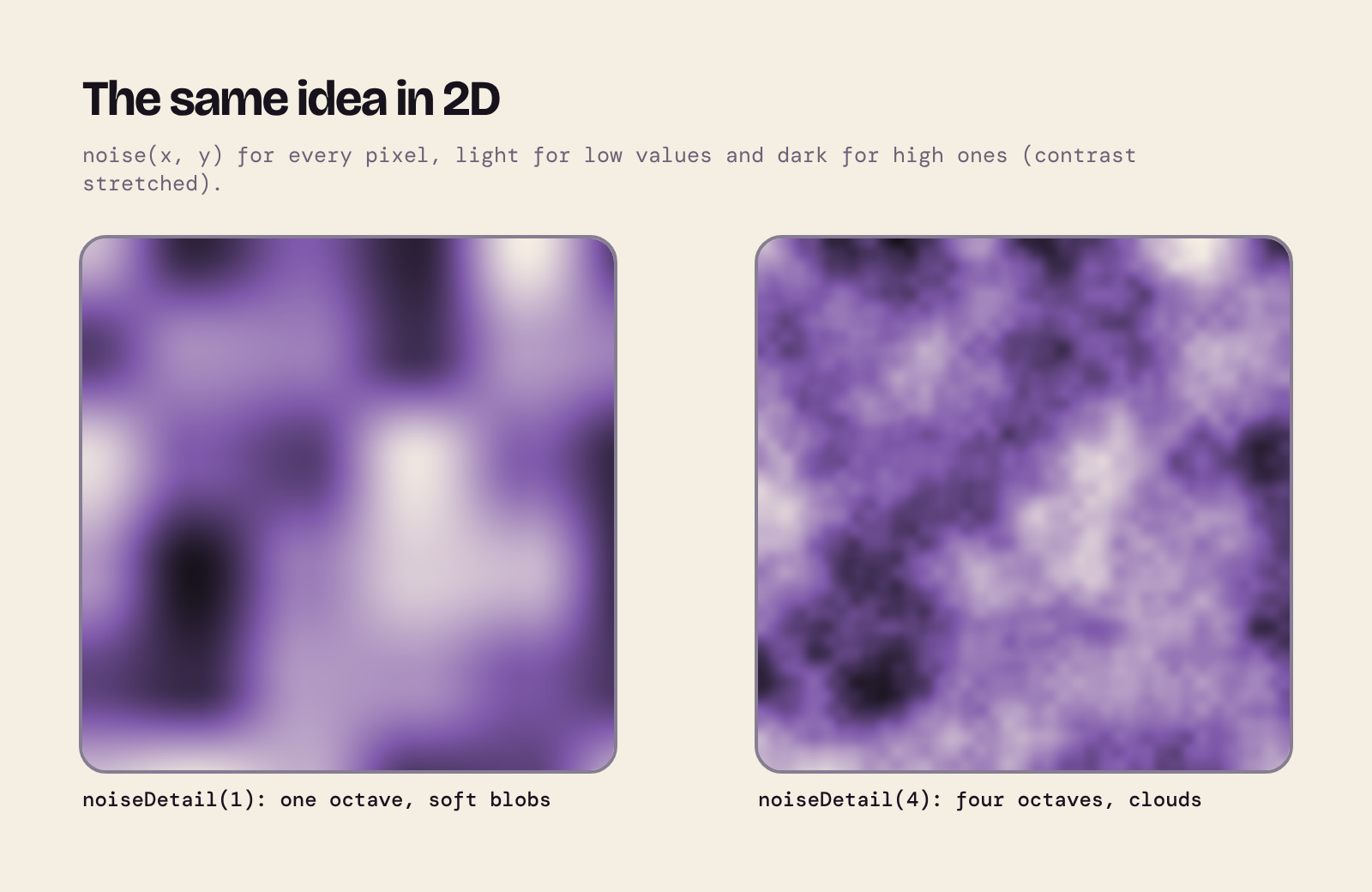
You can build noise one octave at a time yourself in the first sketch of the collection.
00 How noise is built
Yellow dots mark the random heights at whole numbers, and the thick line joins them smoothly: one octave. Press ↑ to add octaves one at a time. Thin lines show each octave on its own, and the thick line is their sum. → and ← change the falloff. Each octave's own layer is simply the difference between two running sums:
const sums = [];
for (let k = 1; k <= this.#octaves; k++) {
  sums.push(this.#sample(k));
}
How the sketches are organised
Each sketch is small, but it is laid out the way a bigger project would be. That is deliberate: the habits matter more as your projects grow, and your coursework will grow.
.
├── index.html
├── style.css
├── README.md
├── config.js
├── sketch.js
└── classes/
    ├── InfoPanel.js
    ├── KeyboardController.js
    ├── Marker.js
    ├── NoiseSampler.js
    ├── Playback.js
    └── RandomSampler.js
config.jsholds every number. Sizes, colours, speeds and keys all live in one frozenCONFIGobject, so there are no unexplained "magic numbers" in the rest of the code. To experiment, you change a setting, not the logic.- One class per file in
classes/, each with one job, documented with JSDoc comments. sketch.jsstays short: it builds the objects insetup(), runs them indraw()and passes key presses on.- Each README explains what to look for, gives a couple of things to try, and lists the controls.
Key presses switch between the different effects in each sketch. A small KeyboardController class maps keys to actions, and the help text on the canvas is built from the same bindings, so the controls on screen can never drift out of step with the code:
keyboard = new KeyboardController()
  .bind(CONFIG.keys.pause, 'pause / resume', Playback.toggle)
  .bind(CONFIG.keys.reseed, 'new noise seed', reseed);
function keyPressed(event) {
  return keyboard.handle(event.key);
}
Returning false from keyPressed() tells p5.js to cancel the browser's default action, so Space pauses the sketch instead of scrolling the page. handle() returns false only for keys the sketch uses.
Click the canvas first if a key doesn't seem to do anything: the canvas needs the keyboard focus.
01 Random vs noise: random has no memory
Three dots move along three lanes:
random()jumps to an unrelated position every frame. Each value has nothing to do with the last one.noise()with the same input every frame doesn't move at all. Noise is not random: the same input always gives the same output.noise()with an input that grows a little every frame glides smoothly, because neighbouring inputs give neighbouring outputs.
A good way to picture Perlin noise is a smooth, endless hill profile. Calling noise(t) reads the height of the hills at position t, like a record-player needle on a groove. To get movement, you move the needle. The sketch wraps that idea in a NoiseSampler class:
next() {
  const value = noise(this.#offset);
  this.#offset += this.#step;
  return value;
}
RandomSampler has a next() method too, so the code that draws a dot doesn't care which kind of sampler it has. The three lanes differ only in the sampler they are given:
const samplers = {
  random: () => new RandomSampler(),
  fixedNoise: () => new NoiseSampler({ offset, step: 0 }),
  movingNoise: () => new NoiseSampler({ offset, step }),
};
Two facts to remember from this sketch:
- With the default settings,
noise()returns a value between 0 and 1. Usemap()to turn it into the range you need, such as 0 towidth. - The noise is the same every time for a given seed. p5.js picks a new seed each time the sketch starts;
noiseSeed()sets one yourself (press R in the sketch).
02 Coupled and decoupled
A square moves, tilts and changes colour, all from noise. The question is which noise value drives each property.
- Coupled (key 1): x, y and the angle all read the same value. x and y are always equal, so the square can only slide along a diagonal.
- Decoupled (key 2): each property reads its own stretch of the noise line, far from the others, so the square wanders freely.
The modes are just data in config.js: which noise "channel" each property reads.
modes: Object.freeze({
  coupled: Object.freeze({
    label: 'coupled: x, y, angle share one value',
    channels: Object.freeze({ x: 0, y: 0, angle: 0 }),
  }),
  decoupled: Object.freeze({
    label: 'decoupled: x, y, angle read separate values',
    channels: Object.freeze({ x: 0, y: 1, angle: 2 }),
  }),
}),
The channels start at 0, 10000 and 20000 on the noise line. Any starting points work, as long as they are far enough apart that the stretches are unrelated. Coupling is not a mistake, though: the square's colour is deliberately coupled to x, so it warms up as it moves right. Choosing what to couple is a design decision.
03 Graphing noise
A moving dot shows one value at a time. A graph shows the character of a whole sequence at once:
random(): spiky, with no pattern.noise(0)at every pixel: a flat line. Moving from pixel to pixel does not move you along the noise line; only changing the input does.noise(xoff)withxoffgrowing by 0.01 per pixel: smooth hills.
for (let x = left; x <= right; x++) {
  // Larger values plot higher up, so map MAX to the top.
  vertex(x, map(sampler.next(), MIN, MAX, bottom, top));
}
This picture only changes when you press a key, so the sketch calls noLoop() in setup() and redraw() after each change, rather than drawing 60 identical frames a second.
04 Step size: zoom and speed in one number
How far you move along the noise line per pixel (or per frame) is the step size, and it is the most important number in any noise sketch. Drag the slider:
- Small steps (0.001–0.01): zoomed in. Slow, gentle, smooth.
- Large steps (0.1 and above): zoomed out. Busy and jagged; at large enough steps noise starts to look like random, although its values still cluster around the middle.
Keys 1–3 switch between noise, a sine wave, and a sine wave with a little noise added. The sine is smooth but perfectly regular; adding noise keeps the overall shape and makes the detail organic. Because sin() returns −1 to 1 and noise returns 0 to 1, each wave is mapped into 0 to 1 first, so they are interchangeable:
static combined(t) {
  const { MIN, MAX } = Waves;
  const amount = CONFIG.wobble;
  // Noise (0 to 1) becomes a wobble centred on zero: −amount to +amount.
  const wobble = map(noise(t), MIN, MAX, -amount, amount);
  // Squeeze the sine wave into amount to (1 − amount), leaving room for the
  // wobble, so the sum always stays between 0 and 1.
  const squeezedSine = map(Waves.sine(t), MIN, MAX, MIN + amount, MAX - amount);
  return squeezedSine + wobble;
}
05 Noise in pixels
Now noise sets the brightness of every pixel, through the pixels array. It is a flat list with four numbers per pixel (red, green, blue, alpha), row by row, so pixel (x, y) starts at index (x + y * width) * 4. The sketch keeps that arithmetic in a PixelPainter class and describes each mode as a small function:
const BRIGHTNESS = Object.freeze({
  solid: () => CONFIG.solidBrightness,
  random: () => random(MAX_BRIGHTNESS),
  oneValue: () => noise(CONFIG.noise.fixedInput) * MAX_BRIGHTNESS,
  noise1D: (x, y, index) => noise(index * CONFIG.noise.step) * MAX_BRIGHTNESS,
});
Mode 4 is the interesting one. It lays 1D noise out row by row, like text on a page. Each row is smooth from left to right, but it carries on from where the row above ended, so neighbouring rows don't match and you get horizontal streaks. For an image that is smooth in both directions, you need 2D noise.
Two practical details: call pixelDensity(1) in setup(), or high-density (Retina) screens will have more array pixels than you expect; and only the random mode needs to redraw every frame.
06 2D noise and octaves
noise(x, y) reads a noise plane that is smooth in every direction, so the same loop now gives clouds:
function brightnessAt(x, y) {
  return noise(x * settings.scale, y * settings.scale) * MAX_BRIGHTNESS;
}
p5.js builds its noise from several layers called octaves, each with finer detail than the one before. noiseDetail(octaves, falloff) controls them; the defaults are 4 octaves and a falloff of 0.5 (each layer counts half as much as the previous one). In the sketch, the arrow keys change both:
- More octaves add finer detail on top of the large shapes.
- Higher falloff makes that fine detail stronger, so the texture gets rougher.
A NoiseSettings class keeps each value within the limits set in config.js and passes them to noiseDetail().
07 Animated noise and flow fields
Add a third input and the 2D pattern can move. The column and row of each grid cell give the first two inputs, and time gives the third:
const value = noise(column * settings.scale, row * settings.scale, this.#time);
Increasing time a little every frame is like slicing through a block of marble one thin layer at a time: each slice is very like the last, so the pattern flows. The same values can be drawn as colour (key 1), as size (2) or as a direction (3). A grid of directions is a flow field: objects placed in it can follow the arrows, which is the basis of many noise drawings. Daniel Shiffman covers flow fields in The Nature of Code (see further reading).
08 Noise landscape
Three mountain ranges, each a strip of 2D noise. Moving the mouse sideways travels along the first noise input; moving it up and down changes the second input, so the hills slowly change shape. Far ranges scroll more slowly than near ones (parallax), which makes flat layers look deep. Each range is an entry in config.js, so adding a fourth range is a change to data, not to code. The sketch is inspired by the noiseScale example in the p5.js reference.
09 Instance mode
All the sketches before this one use p5.js global mode: setup(), fill(), width and the rest are global. It's quick to write, but you get one sketch per page, and every name you create shares the global scope with hundreds of p5.js names.
In instance mode, a sketch is a function that receives its own p5 instance, usually called p, and reaches everything through it: p.fill(), p.width. Sketch 09 uses one function to build two sketches on one page, a random walker and a noise walker:
CONFIG.sketches.forEach((settings) => {
  new p5(createWalkerSketch(settings), document.getElementById(settings.container));
});
It is also a short lesson in inheritance. A Walker base class handles the trail, the bounds and the drawing, and leaves one method for subclasses:
class RandomWalker extends Walker {
class NoiseWalker extends Walker {
Each subclass overrides only nextPosition(), so the one difference between the two canvases is random versus noise. Press R to restart both: the random walker takes a new path every time, while the noise walker repeats exactly the same one. Same inputs, same outputs.
Summary
| Idea | Sketch |
|---|---|
| How noise is built: lattice, smooth curve, octaves | 00 |
random() has no memory; noise() is smooth and repeatable |
01 |
| Coupled vs decoupled properties | 02 |
| Moving through the noise line by changing the input | 03 |
| Step size sets zoom and speed | 04 |
Noise in the pixels array; 1D noise row by row |
05 |
2D noise, octaves and falloff (noiseDetail()) |
06 |
| 3D noise for animation; flow fields | 07 |
| Layers of 2D noise; parallax | 08 |
| Instance mode and inheritance | 09 |
Further reading
- The Nature of Code by Daniel Shiffman, free online: chapter 0, Randomness covers random walks and Perlin noise, and chapter 5, Autonomous Agents covers flow fields. My earlier post on the book: The Nature of Code.
- p5.js reference:
noise(),noiseDetail(),noiseSeed(). - p5.js: Instance mode explained (p5.js wiki).
- Perlin noise on Wikipedia and Ken Perlin's Improved Noise reference implementation.
About the author
- Head of eLearning at the University of Cambridge Language Centre, full-stack developer and AI engineer, and online tutor on the BSc Computer Science from Goldsmiths, University of London, on Coursera. I started out in neuroscience research before moving into web development, and have spent over twenty years building digital learning at Cambridge. This blog is my supplementary material for students on the BSc: set-up guides, explanations of the ideas that trip people up, and worked examples. New here? Click Website above for my Start here page and module guides.
Comments
Join the discussionNo comments yet. Be the first to comment.
Graphics Programming (CM2030)
This module aims to show you how to work with images in a variety of ways. You will learn how to synthesise graphics and how to process visual signals.